

Recent Posts

How to Rent a GPU Server from Ring Compute Using the Vast.ai CLI
- Calendar
Ring Compute's GPU servers are available for rent through Vast.ai, one of the largest GPU cloud marketplaces. In this guide we walk through how to find a Ring Compute server, spin up an instance, and connect to it via SSH — all from the command line.
Prerequisites
Before you begin, make sure you have the following:
- A Vast.ai account (sign up at vast.ai)
- Python 3 installed on your system
- An SSH key pair (
~/.ssh/id_rsaand~/.ssh/id_rsa.pub)
Step 1: Install the Vast.ai CLI
Install the CLI tool using pip:
pip install vastai
Then set your API key. You can find your key at cloud.vast.ai/cli/:
vastai set api-key YOUR_API_KEY
Step 2: Add Your SSH Key to Vast.ai
Before creating an instance, add your public SSH key to your Vast.ai account. Go to cloud.vast.ai/manage-keys/ and paste the contents of your public key. This ensures all new instances are automatically configured with your key.
Step 3: Find a Ring Compute Server
Search for available offers on Ring Compute machines. Our current machine IDs are 29403, 35048, 41080, 45874, and 47481. You can search for any of them:
vastai search offers "machine_id=41080"
This returns a table of available offers. Note the offer ID in the first column — you will need it in the next step.
Step 4: Create an Instance
Use the offer ID from the search results to create an instance. Choose a Docker image and specify how much disk space you need:
vastai create instance OFFER_ID --image pytorch/pytorch:2.1.0-cuda12.1-cudnn8-devel --disk 100 --ssh --direct
The --ssh flag enables SSH access and --direct enables a direct connection. The response includes a new_contract value — this is your instance ID.
Step 5: Wait for the Instance to Start
Monitor your instance until its status shows as running:
vastai show instance INSTANCE_ID
This typically takes one to two minutes while the Docker image is pulled and the instance boots up.
Step 6: Connect via SSH
Once the instance is running, get the SSH connection details:
vastai ssh-url INSTANCE_ID
This returns a URL like ssh://root@ssh4.vast.ai:11244. Use it to connect:
ssh -p PORT root@HOST
If you did not add your SSH key to your Vast.ai account beforehand, you can attach it to a running instance:
vastai attach ssh INSTANCE_ID "$(cat ~/.ssh/id_rsa.pub)"
What You Get
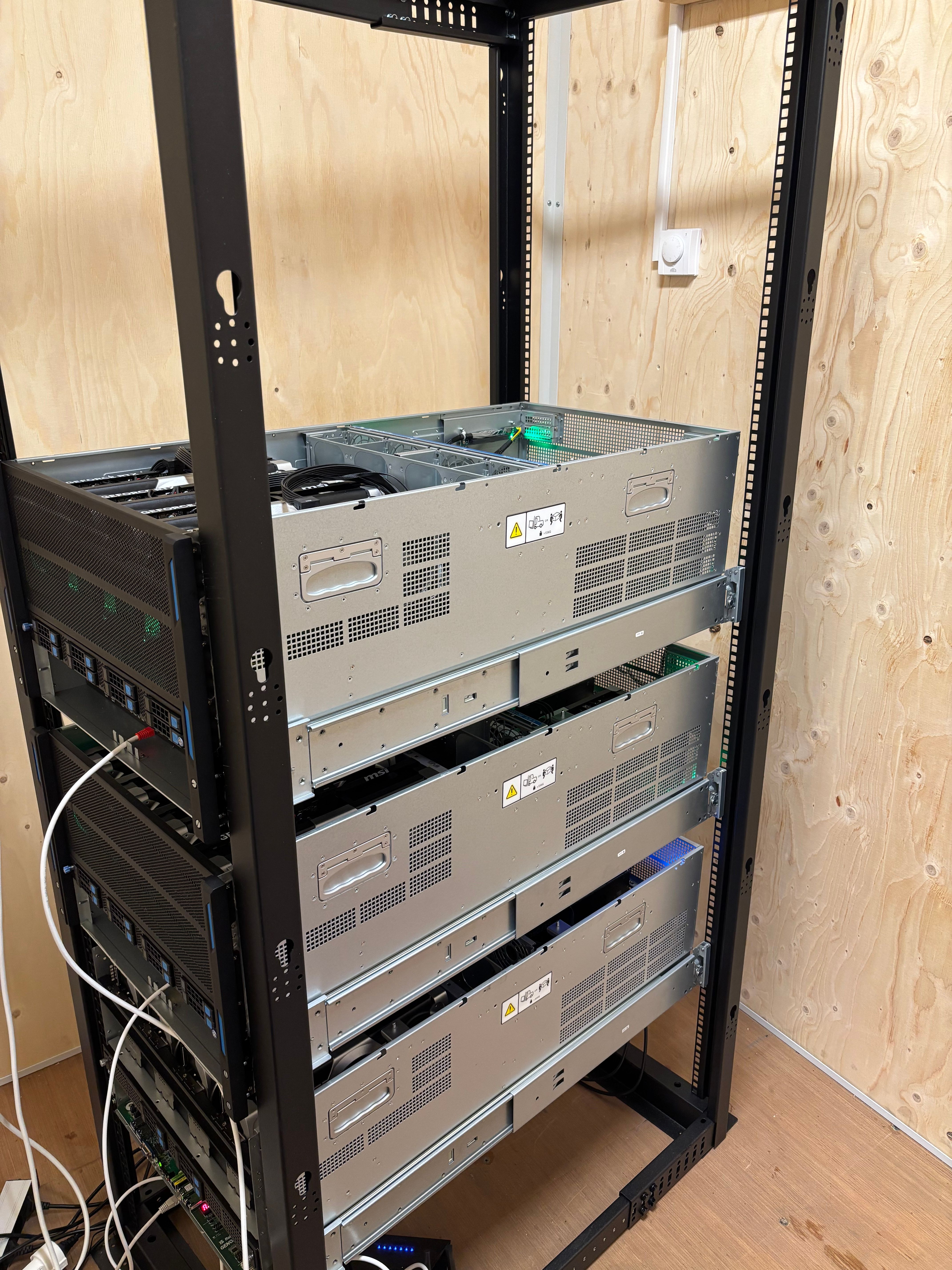
Each Ring Compute server is equipped with 8x NVIDIA RTX 5090 GPUs with a combined 256 GB of VRAM. This is enough to run the largest open-source models such as DeepSeek R1, Llama 3.1 405B, and Mixtral 8x22B. You have full root access inside your Docker container and can install any software you need.
When you are done, you can destroy the instance from the Vast.ai dashboard or CLI to stop billing. Happy computing!